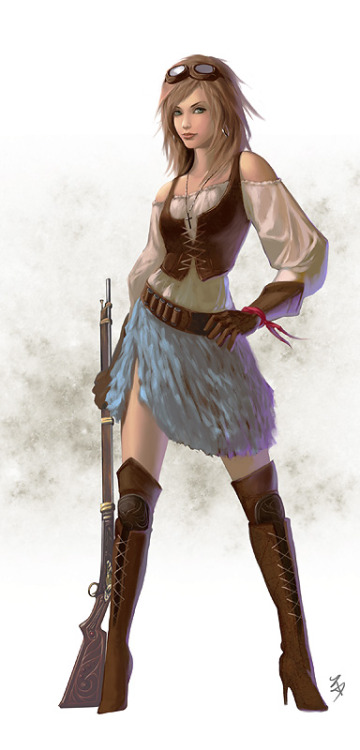
Mira

By MiChu. November 27th, 2007

A walk-through guide on how I draw this piece.
Tool: Adobe Photoshop (10 or CS)

sketch

1. Sketch

One advantage of working in digital media is that for draft, a crappy small sketch like the one I have here would be quite enough. Function such as layers, Undos and history allows us to keep developing the picture without worries. Just remember to save different versions at various stages as you go along.

2. Refine the sketch

Well, just a little bit. I was still brewing the idea at this stage, so I kept it loose. The focus here was to define large shapes and areas, instead of filling in details. We will come to that later.

3. Decide on the colours

It’s still very loose at this stage. The main goal at this stage was to decide on the colours that I would be using to go further.

I decided to go pastel this time, and a contrast between the angelic face, and goth-styled costume which is black in most of the part, so I made sure I sort of got that feel right.

4. Keep refining

Once the large direction was set, I blow up the image size at least 200%, and then started filling in all sorts of details that came into my mind, such as her make-up and the details in her dress. This is when I really began to design for the details. If I got stuck here, Google search would come to my rescue!

( Then of course, when I am working on a more serious piece which I know I’ll invest a lot of time in, I would spend more time doing research, pencil sketches, lighting and colour studies etc. )

This is also when I start to fix all the mistakes that I could see, and experiment with some variation in colour by using an adjustment layer.

I find it easier to smooth things out only after deciding not to make any change anymore. Therefore, so far I had been using a hard-edged brush, and would continue to do so until I want to warp things up. I might use a textured brush in some part, but it’s still hard-edged.

5. Add more detail

Just keep building things up - a bit like playing Lego!

6. Detail example: how I did the laces

It’s very simple, and it works!

Paint a large shape, and then erase away random small shapes (left),

or play with colour contrast (right).

It’s all about creating the illusion. There is not need to be specific about every single pixel so that when you zoom in 100 times it would still match a photograph 100X.

7. Keep building things up

until you get fed up and cannot go on!

And indeed, I thought I had enough. To ease my pain, I used a feathered brush with low opacity to smooth things out a bit. Sounds like cheating, but it works quite well, especially for a not-so-realistic. Well, as long as it works.

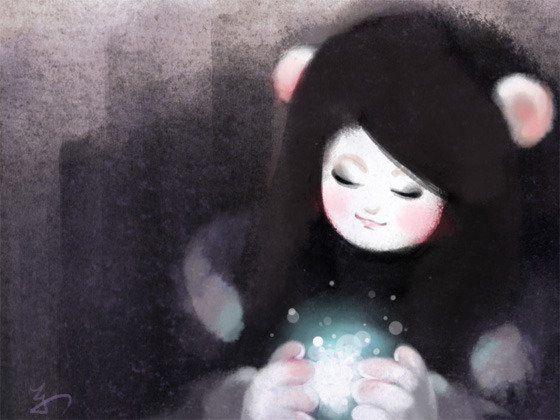
And this is my end result so far.

I could refine it a bit more, but I’ll stop here for now.

3 Responses to “Mira”

  1. ha su jung Says:

    d

  2. jawada Says:

    wonderful tutorial! it really helped!

  3. jie Says:

    youre awesome :)

Leave a Reply

*
To prove you're a person (not a spam script), type the security word shown in the picture. Click on the picture to hear an audio file of the word.
Click to hear an audio file of the anti-spam word